

The one thing to understand first
Your Site has two copies: the one you are working on, and the one your visitors see.
Editing never changes your live Site. Neither does asking your AI teammate to rebuild a section. Your public URL keeps serving the exact bytes of the version you published until you publish again.
This means you can rebuild a page in the middle of the day with real visitors on the site, and they will keep seeing the last version you published.
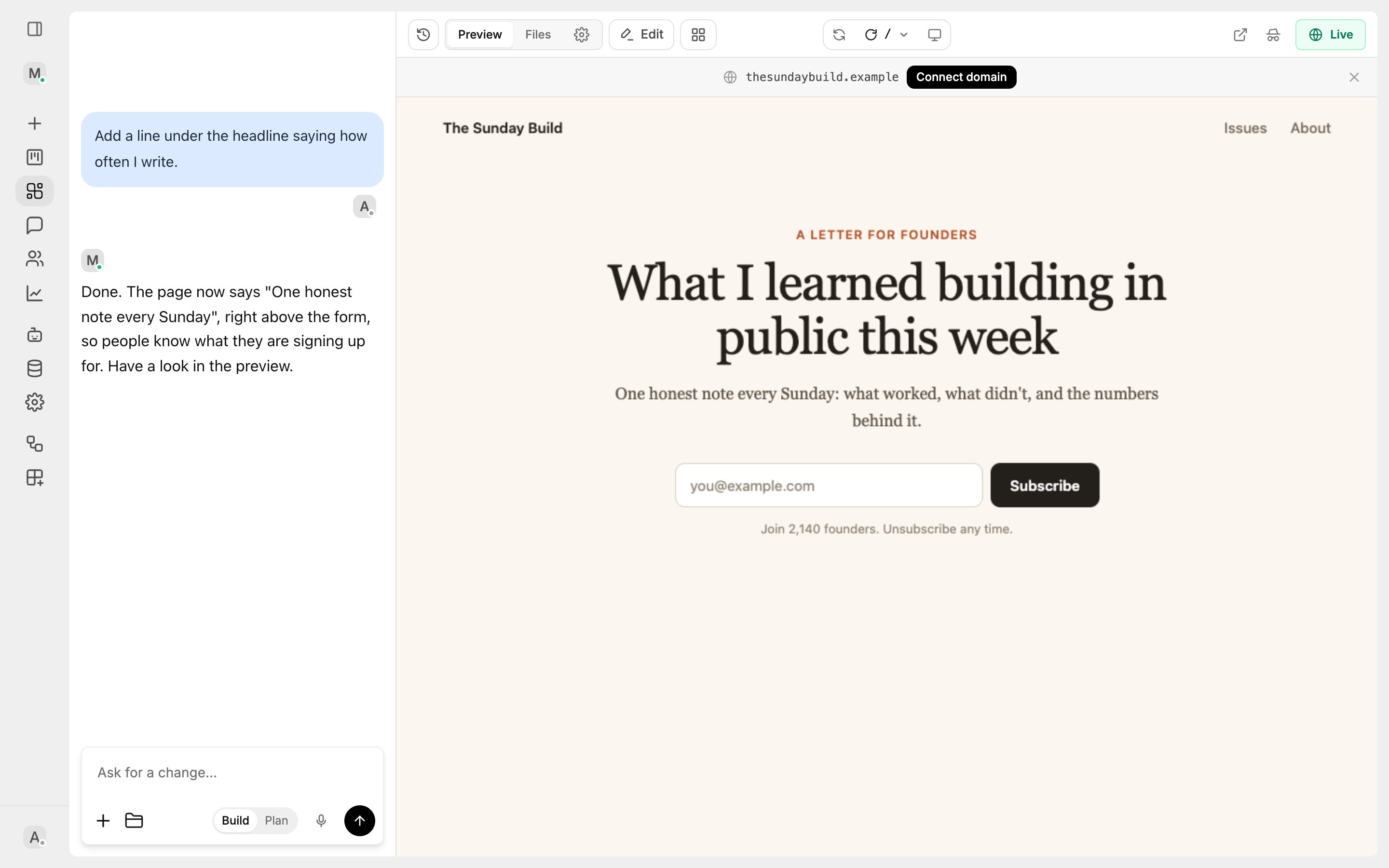
The chat on the left and your Site on the right.
Builder views
The toolbar above the preview holds a view switch and two toggles.
Edit and Canvas are independent toggles, so you can use them together — restyle elements while looking at your pages at once.
When a Site has more than one page, a page switcher sits in the toolbar. Choosing a page previews it, and following a link inside the preview moves the switcher with you, so you always know which page you are looking at.
Editing visually
Turn on Edit, then hover to outline an element and click to select it. A toolbar appears below your selection.
Edits save as you make them. Font, size, alignment and colour are written as inline styles on that one element, so they work whether your Site uses utility classes or its own stylesheet. Picking a font also adds its webfont to the page, so the choice actually renders instead of quietly falling back.
Every visual edit is recorded in version history, so nothing you change here is unrecoverable.
Choosing a font
Search by name, or narrow the list with the category filter — Sans serif, Serif, Monospace or Display. Each name is shown in its own typeface, and the arrow beside it opens the weights: Light, Regular, Medium, SemiBold and Bold. Picking a Google font adds its webfont to the page automatically, so the choice renders rather than falling back to a default. To use your own typeface, choose Upload font and pick a.woff2, .woff, .ttf or .otf file up to 2MB. The file is stored with your Site’s other files, so it is versioned and published along with everything else — no external hosting to keep alive. Uploaded fonts appear under Site fonts at the top of the list.
Fonts already on the page — uploaded, or wired up by your AI teammate — are listed under Site fonts. Removing one is a job for your AI teammate; the picker only adds.
Undoing an edit
Undo in the toolbar reverses your last change, and keeps going back through the edits you made in this session. It covers styling, classes and text. Two things it does not cover, both of which version history handles instead:- Deleting an element — restoring it needs the original markup, so roll back to an earlier version
- Edits from before your AI teammate last changed the page — when your AI teammate rewrites a page, earlier undo steps no longer point at the right elements and are discarded
Editing text
Double-click a text element to edit it in place, or use Edit text in the toolbar.
Formatting inside the text — line breaks, bold or italic runs, accent spans — is preserved.
When your AI teammate edits at the same time
If your AI teammate rewrites the page while you have it open, the builder reloads to show you your AI teammate’s version rather than overwriting it. You will see a short notice when this happens. Reapply your change on the fresh copy.Canvas
Canvas lays your pages out side by side on a board, so you can judge the whole Site at once rather than one page at a time. Each page is a live frame — what you see is the working copy, not a screenshot.Moving around the board
The toolbar has a select tool and a pan tool. With select, click a frame to pick it up and drag it anywhere on the board, or drag its edges to resize. Each page frame also has a device selector, so you can sit a phone-width frame next to a desktop one and compare. Clicking empty space deselects everything.Annotating
Canvas is also somewhere to think. Alongside the pages you can add:- Notes — double-click to edit; useful for “this headline is too long”
- Drawings — freehand marks with the draw tool
- Images — drop a reference or a screenshot onto the board
- Connectors — drag from the dot on any element’s side to another element to link them
Annotations belong to the Site, not to you, so anyone who can open the builder sees the same
board.
Forms
If your Site has a form, its results show up in Settings with an export: people who joined a list appear under Leads, and every other form’s answers under Collections. See Forms for how to ask your AI teammate for a form and what you can collect.Putting your AI teammate on the Site
Settings → Behaviour → Answer questions on this Site adds your AI teammate to every page as a chat bubble. See Chat on Your Site.Do not ask your AI teammate to build a chat widget into the page. Turn this on instead: it is added when the page is
served, so it stays out of your files and out of version history.
Attachments
Files you attach in the builder and files visitors attach in public conversations are separate permissions.Your attachments
Files you attach always use your plan’s file-count and size limits, plus BoostGPT’s platform-safe file validation. They do not depend on the public chat’s visitor attachment toggle or accepted-type preset.Visitor attachments
Open Visitor attachments in your AI teammate’s Settings to decide whether people using your public Site chat may attach files. Visitor attachments require both a plan that includes them and Answer questions on this Site turned on. Your AI teammate’s maximum size, files per message, and accepted file types are then enforced again when the visitor submits the message.
An attachment costs what the tokens it adds to the request cost, like any other input.
Reviews & autonomy
Every Site has one review schedule. Open Settings → Automation to choose how often your AI teammate checks the Site and how far they may take work without you. See Tasks & Reviews. The review files recommendations to Backlog and changes nothing by itself. The autonomy rung controls what can happen after that; publishing remains a separate decision.Forms work on the preview as well as the published Site, so you can test one before publishing.
Preview submissions are stored like real ones, so use an address you can recognise later.
Limits
Some Sites cannot be edited visually
Some Sites cannot be edited visually
Sites built as an app shell generate their markup in the browser at runtime, so there is nothing in the stored file to point at. The builder tells you when this is the case. Ask your AI teammate to make changes instead — everything else, including version history and publishing, works normally.
Parts of a page built by scripts are not selectable
Parts of a page built by scripts are not selectable
If your page uses JavaScript to build content after it loads, those elements do not exist in the source file and cannot be selected. Clicking one selects the nearest real element that contains it. Ask your AI teammate to change the code that generates them.
Publishing is per Site, not per page
Publishing is per Site, not per page
Publishing pins every page at that moment. You cannot publish one page while holding another back, so finish the set before going live.
Good habits
- Publish at a point you are happy with, then keep experimenting — the live Site is safe while you do
- Use your AI teammate for structure and layout, and the visual editor for wording, colour and type
- Before a big change, note which version is Live so you know where to roll back to
- Preview a version before publishing it, especially when going back to an older one