

Version history
Open version history from the clock icon in the preview toolbar. It takes over the chat panel, so your preview stays where it is.What creates a version
- Each AI teammate turn — one version per completed build turn, titled from what your AI teammate did
- Your own edits — grouped into a single Manual Edits version rather than one per click. The group stays open while you keep working and closes when any of these happen:
- about five minutes pass without an edit
- your AI teammate makes a change of their own
- you publish
- you roll back to another version
Reading the list
What you can do with a version
1
Preview
Opens that version read-only in the builder so you can see it before committing. Choose Stop previewing to return to your working copy. Preview links are private to you and are never indexed by search engines.
2
Publish this version
Points your public URL at that exact version. Use it to go live with an older version without disturbing what you are currently working on.
3
Rollback to this version
Copies that version’s files back into your working copy, as a new version on top of the history.
Rollback moves forward, never backward. Restoring an older version adds a new entry rather than deleting anything, so the versions you rolled back past are still there and can be restored again.
Publishing
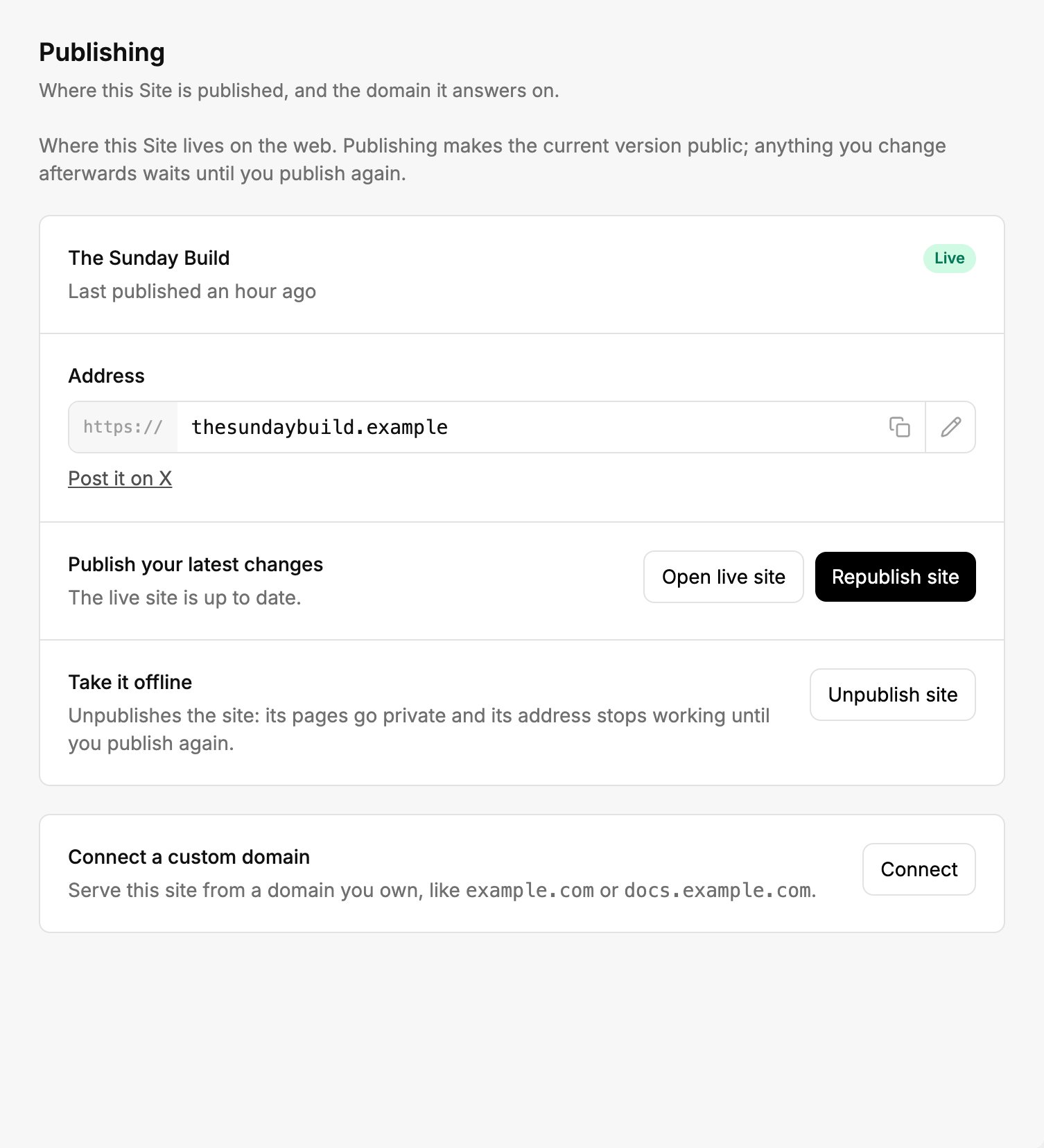
Publish, take your Site offline, or connect a domain.
1
Preview your work
Check the working copy in the builder. This is what will go live.
2
Choose a subdomain and publish
Your Site’s public URL now serves that snapshot.
3
Keep building
Further edits go to the working copy. The live Site does not change again until you publish.