

Connect a repository
You can start a new Site from a repository, or link an existing Site.1
Open Repository
Choose GitHub / GitLab in New Site, or open your Site’s Settings → Repository.
2
Sign in
On GitHub, install the BoostGPT app and give it access to your repositories. On GitLab, sign in. You need the
Maintainer role on the project.
3
Choose the repository
Pick the repository, the branch and, if your site lives in a folder, that folder.
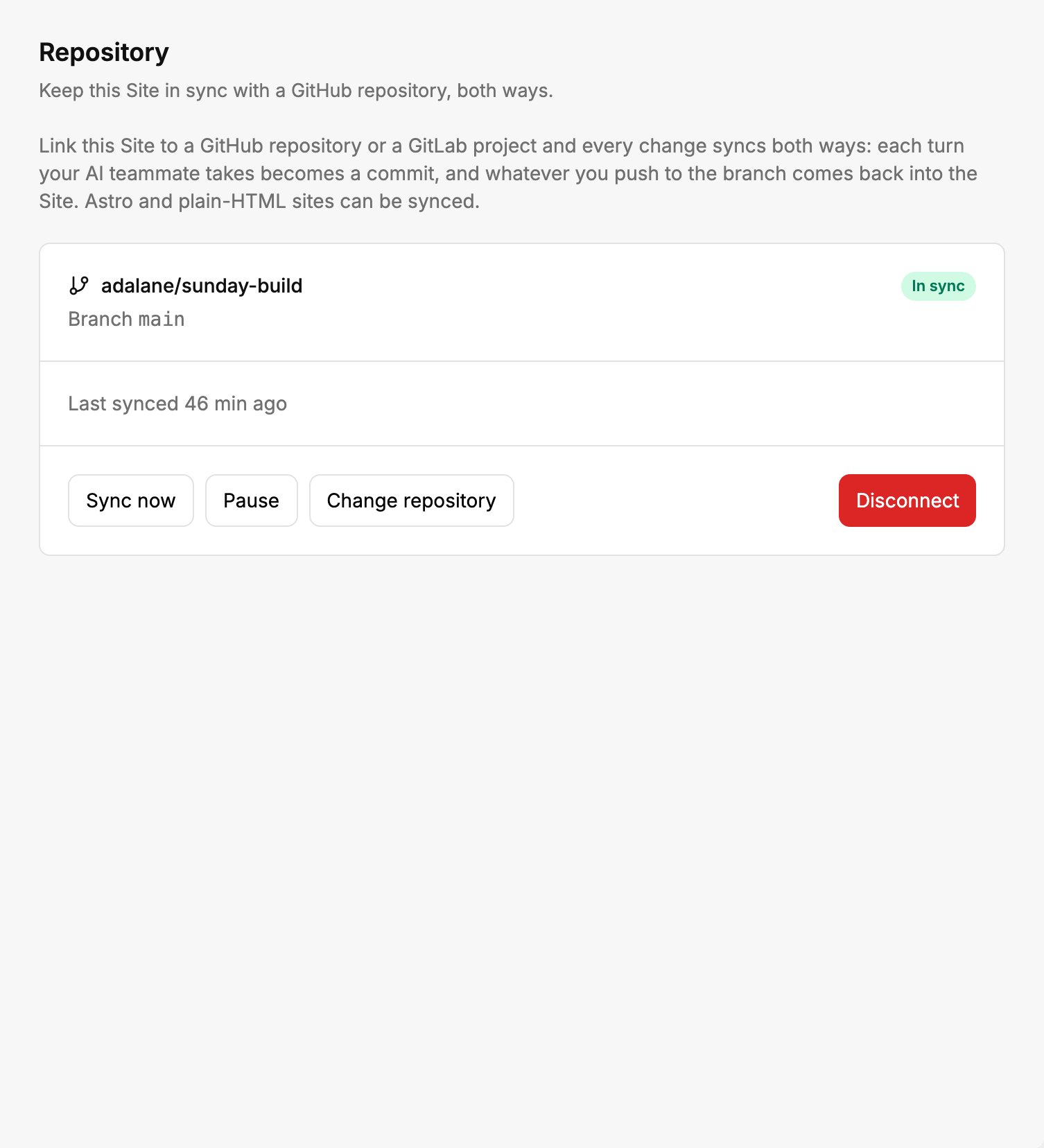
A Site linked to a GitHub repository.
What the first sync does
After a push
Pushed changes come into your Site and it builds on its own, so your preview catches up. If the changes don’t build, the error appears in Settings → Repository and you get a notification. Push a fix, press Sync now, or ask Mira to fix it. Pushes never change your live Site by themselves. You choose when to publish.When both sides change
If a file changed in your repository and in BoostGPT, nothing is lost. Your Site takes the repository’s version, and BoostGPT’s version goes on a side branch with a pull or merge request, so you can merge what you want to keep.Good to know
- A secret key is never pushed. If one is found in a file, the sync stops and names the file.
- Build output stays out of your repository, and files your
.gitignorecovers are left alone on both sides. - Your plan’s limits apply. A pull that wouldn’t fit is refused, and nothing is synced.
- Pause stops syncing. Resuming catches up on both sides.
- Disconnecting deletes nothing on either side.